AI Video Generation Tools
Make short videos with sound from a photo or a sentence. Choose a model, a length and a quality, then generate.
Tools in this category
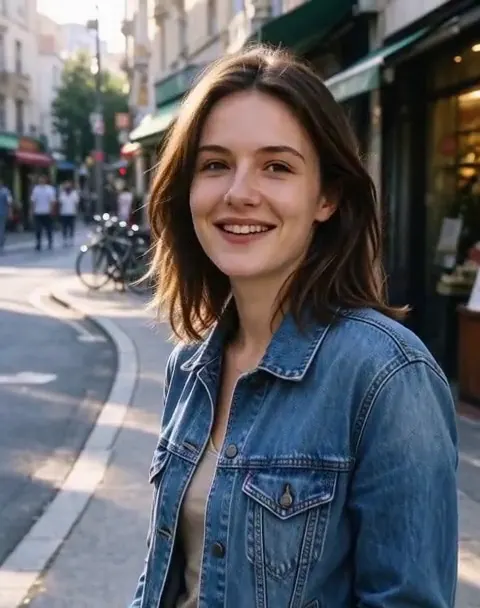 Image to Videofrom 45 creditsUpload a photo, describe how it should move, and get a short AI video with sound. Choose MiniMax H3 or Veo 3.1 Lite.
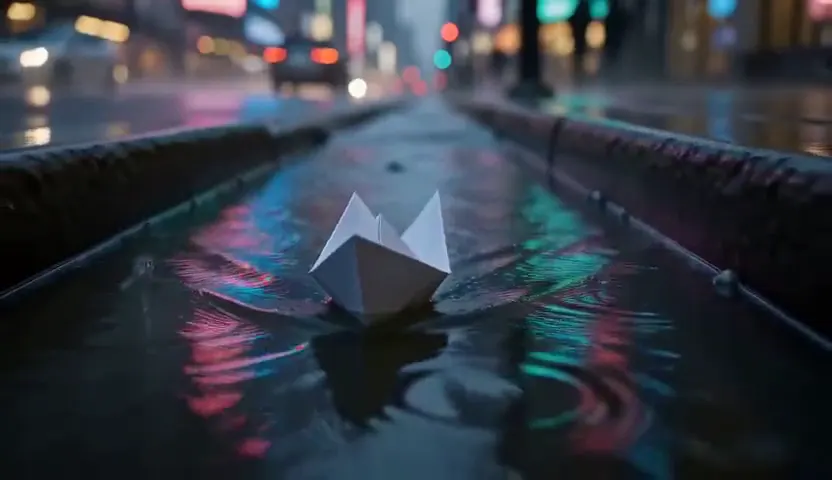 Text to Videofrom 45 creditsType a scene and get a short AI video. No camera, no footage, no editing software.
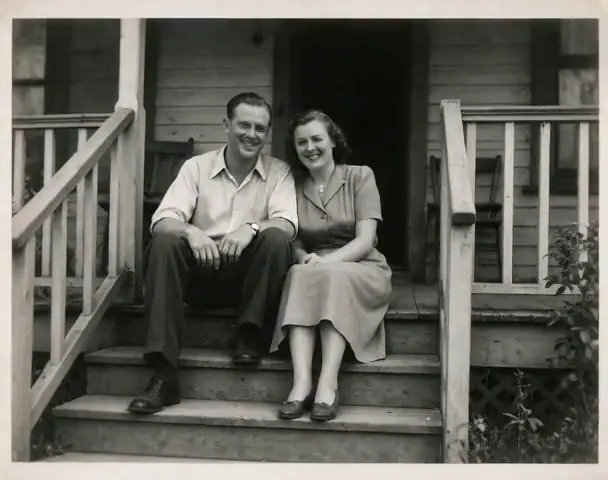 Animate Photo45 creditsTurn a still picture into a short, lifelike video with gentle, natural motion. Perfect for old family photos.
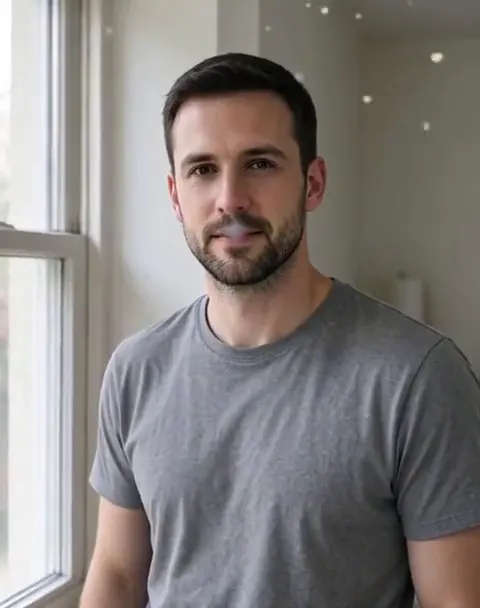 AI Video Effects45 creditsPick an effect, upload a photo, and get a 5-second video. No prompt to write.
Why people use it
Start from a photo or text
Animate an image with Image to Video, or describe a scene from scratch with Text to Video.
Two video models
MiniMax H3 Max Turbo for 480p or 768p, and Google's Veo 3.1 Lite for 720p.
Videos with sound
Both models generate an audio track along with the video.
One-click effects
AI Video Effects and Animate Photo only need a photo, with no prompt to write.
AI video
What AI video tools are for
AI video generation turns a still image or a short description into a moving clip. It is a quick way to make social posts, product teasers, intros and animated memories without a camera, actors or editing software. Every clip comes with sound, so it is ready to share.
The tools in this category
- Image to Video – upload a photo and describe the motion. Choose MiniMax H3 for 480p or 768p clips of 5 or 10 seconds, or Veo 3.1 Lite for 720p clips of 4, 6 or 8 seconds.
- Text to Video – describe a scene and let the AI create it from scratch, with the same models, lengths and resolutions.
- AI Video Effects – upload one photo and apply an effect: cinematic zoom, wave hello, wind in hair, retro 80s, night lights or snowfall. Each clip is 5 seconds at 480p.
- Animate Photo – add small, natural movement to a still photo, such as blinking, breathing and gentle head turns. It is popular for old family photos and makes 5-second clips at 480p.
How to choose
If you have a photo and a clear idea of the motion, use Image to Video. If you only have an idea, use Text to Video. If you want a fun result without writing a prompt, pick AI Video Effects. If you want a portrait or an old photo to come to life gently, use Animate Photo.
Within Image to Video and Text to Video, MiniMax H3 is the default and costs less. It also offers 10-second clips and, for Text to Video, square, 4:3 and 3:4 formats. Image to Video follows the shape of your photo. Veo 3.1 Lite costs more per second and makes 720p video in 16:9 or 9:16.
Tips for better videos
Describe what moves and how the camera moves, not only what is in the scene. Use sharp photos where the subject is clearly visible. Because videos use purchased credits, test an idea with a short 480p clip before making a longer or higher-resolution version.