Animate Photo with AI
Turn a still picture into a short, lifelike video with gentle, natural motion. Perfect for old family photos.
- 45 credits
- Free account, 20 credits to start
- Uses purchased credits
Video uses purchased credits. Free credits work for image tools.
See what it does
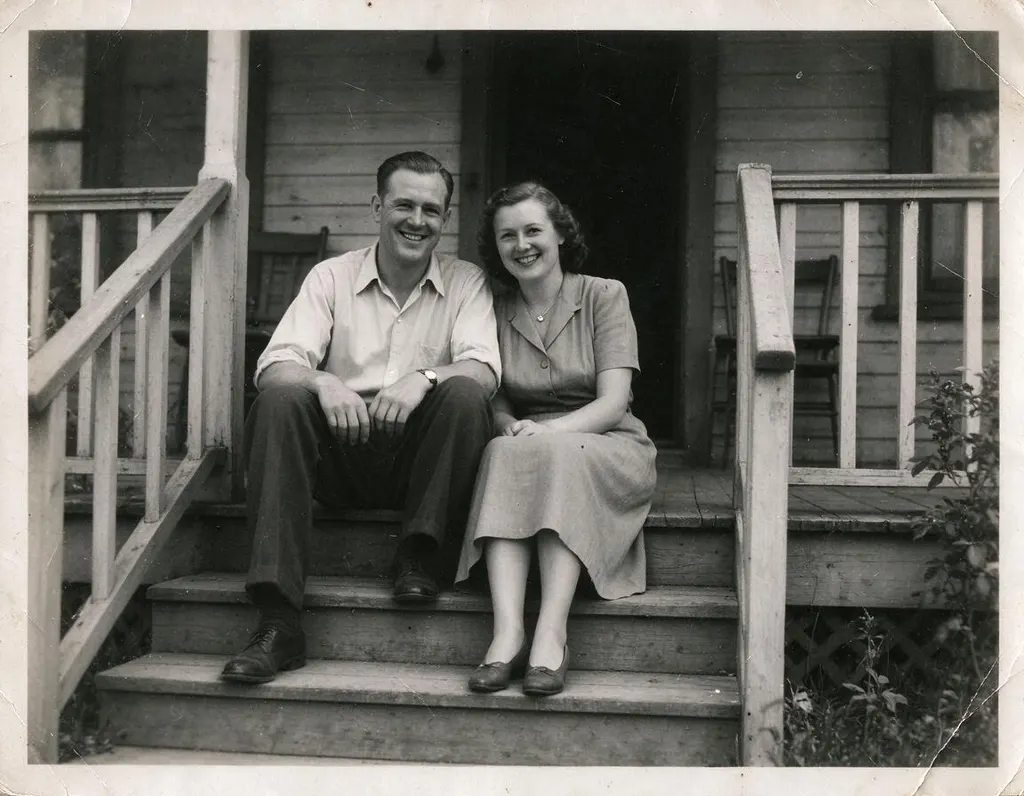 Before
How it works
Why people use it
Natural, subtle motion
Gentle movements bring the picture to life without turning it into something else.
Made for old photos
A popular way to see grandparents and ancestors move again. Restore and colorize first for the cleanest result.
No prompt needed
Upload a photo and the AI handles the motion for you.
5-second clip
Each video is 5 seconds at 480p, generated with MiniMax H3.
One simple price
Each animation costs 45 credits, paid with purchased credits.
Why animate a photo
A still photo captures a single moment. To animate photos, the AI imagines the seconds around that moment and adds small, natural movement, so a portrait feels alive rather than frozen. It's especially moving with old family photos: seeing a great-grandparent move for the first time is something many people want to share.
It also works for recent pictures. Animate a portrait for a birthday message, add life to a pet photo, or turn a still from a trip into a short clip.
The old photo workflow
Old prints often have scratches, creases and faded tones that become more noticeable in motion. For the best result, run them through three tools in order:
- Old Photo Restoration repairs scratches, creases, stains and fading.
- Colorize Photo adds natural color to black and white pictures.
- Animate Photo turns the restored, colorized picture into a 5-second video.
Each step can send its result straight to the next, so you only upload once.
Tips for natural results
- Use a clear face. Front-facing portraits with visible eyes animate most naturally.
- Avoid tiny subjects. If people are very small in the frame, crop closer first.
- Start sharp. Use Unblur Image or the Image Upscaler on soft or small photos before animating.
- Pick a calm moment. Photos where people are posing or resting animate more naturally than shots frozen mid-jump or mid-step.
- Keep the background simple. Backgrounds can move a little too, and a simple one keeps the focus on the person.
Credits and limits
Animation uses purchased credits only, at 45 credits per video. Each clip is 5 seconds at 480p, made with MiniMax H3. The motion is generated by AI, so expressions and small details may not match exactly how a person really moved. For specific actions or longer, higher-resolution clips, use Image to Video.
Frequently asked questions
Try next
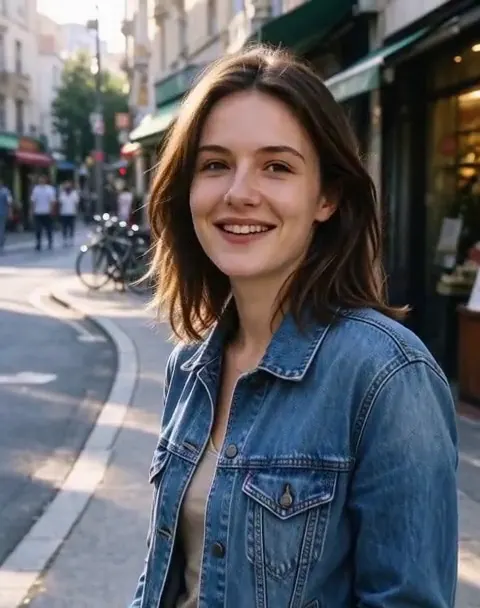 Image to Videofrom 45 creditsUpload a photo, describe how it should move, and get a short AI video with sound. Choose MiniMax H3 or Veo 3.1 Lite.
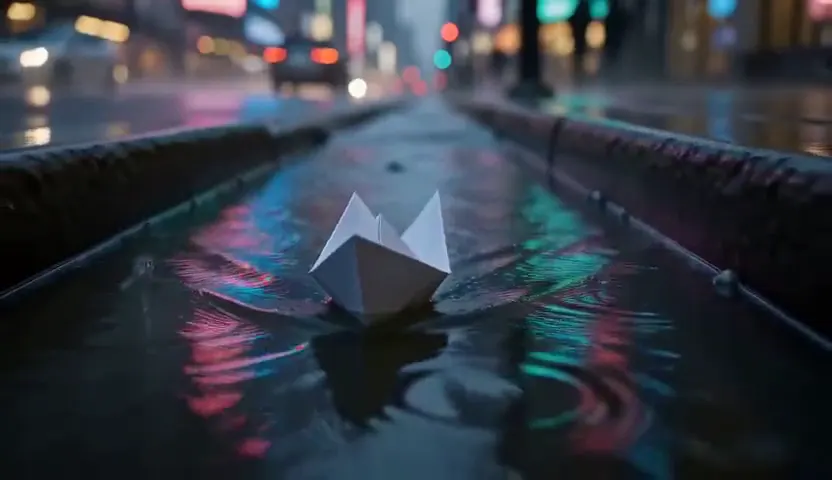 Text to Videofrom 45 creditsType a scene and get a short AI video. No camera, no footage, no editing software.
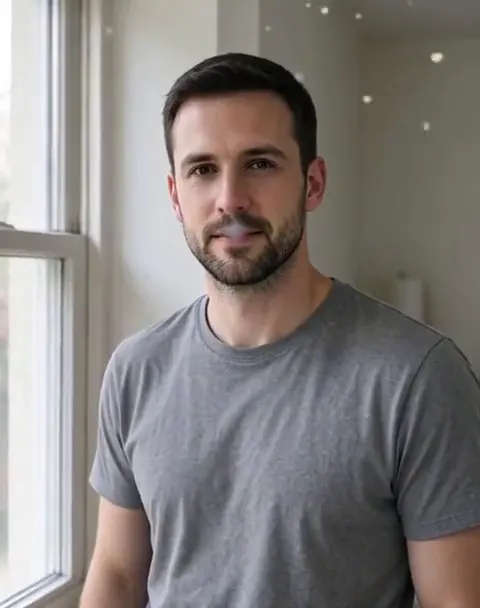 AI Video Effects45 creditsPick an effect, upload a photo, and get a 5-second video. No prompt to write.