AI Photo Retouching Tools
Paint over what you don't want, add what you do, or make the picture bigger. A free in-browser object remover is coming soon.
Tools in this category
 Object RemoverFreeBrush over what you don't want and the AI fills in the gap. The AI Object Remover works today; a free in-browser eraser is coming soon.AI Object Remover4 creditsErase large objects and busy scenes with a cleaner, more natural fill. No watermark on the result.
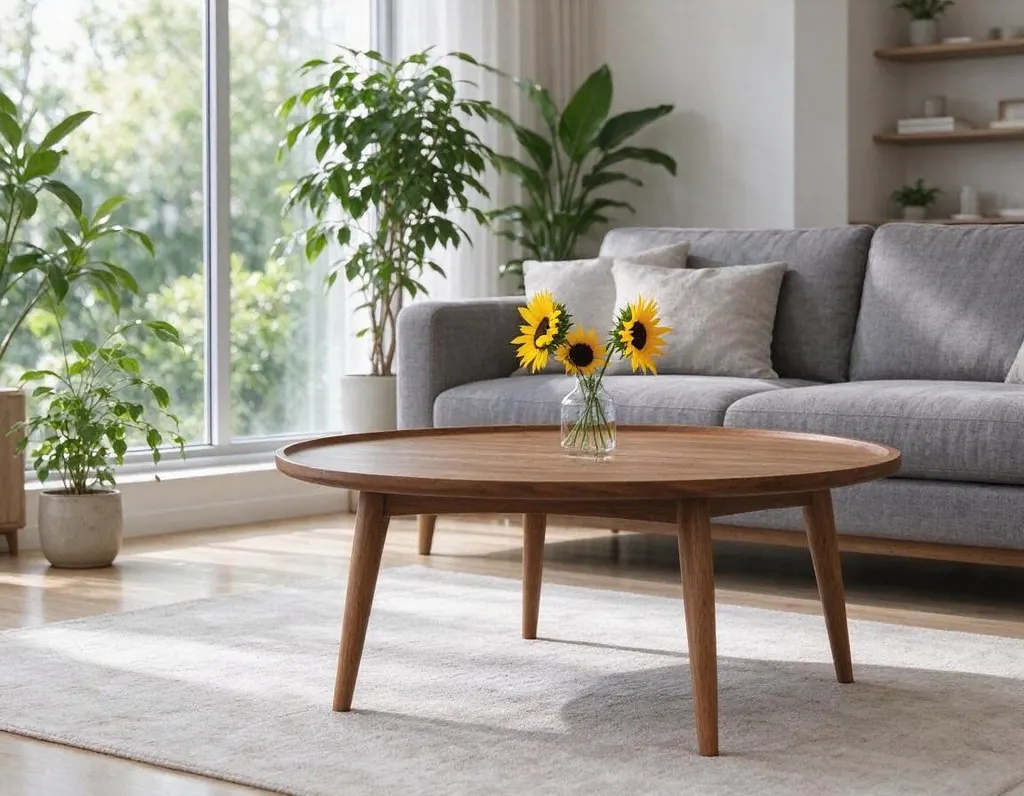 Generative Fill2 creditsBrush an area, type what you want there, and the AI paints it in to match the rest of the photo.
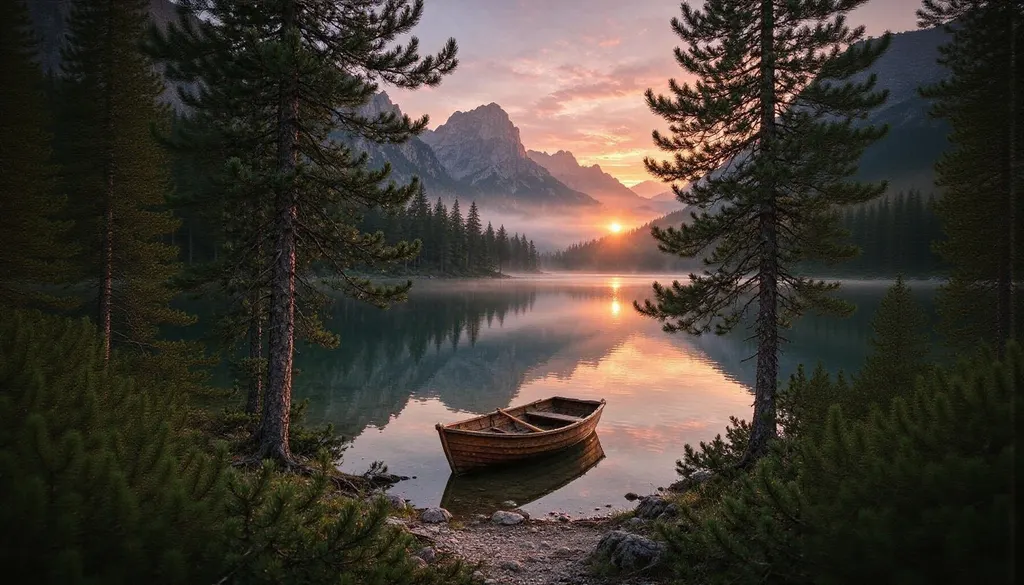 AI Image Extender2 creditsPick a new aspect ratio and the AI fills in what lies beyond the frame. No cropping, no stretching.
Why people use it
Free object removal, coming soon
Remove Object from Photo will run in your browser, so it will be free, unlimited and your photo will never be uploaded.
Higher-quality removal
The AI Object Remover fills larger areas on our servers, for clean results on big objects and busy backgrounds.
Add things with a prompt
Generative Fill paints new content into a selected area based on a short description.
Extend to a new shape
The AI Image Extender adds new scenery around a photo, for example to turn a square into 16:9.
Retouch
What retouching tools solve
A good photo is often spoiled by one thing: a stranger in the background, a power line, a trash can, a date stamp, or a frame that is too tight. Retouching used to mean careful cloning by hand. These tools let you paint over a problem area or choose a new shape, and the AI fills in the rest.
The tools in this category
- Remove Object from Photo – a free object remover that will run in your browser. Brush over people, clutter or text and they disappear, with no sign-up, no limit, and the photo staying on your device. It is coming soon.
- AI Object Remover – a higher-quality version that runs on our servers. Use it for bigger objects or busy backgrounds where the free version leaves smudges.
- Generative Fill – paint an area and describe what should be there, such as "a vase of red tulips". It can add new objects or replace existing ones. Images are processed at about 1024×1024.
- AI Image Extender – expand a photo to a new aspect ratio, for example from 1:1 to 16:9, and the AI creates the missing scenery around the edges. Results are up to about 2 megapixels.
How to choose
To remove something today, use the AI Object Remover. Once the free Remove Object from Photo launches, it will be the quick option for small objects on simple backgrounds. If you want something new to appear in the photo, use Generative Fill. If the photo is the wrong shape for a banner, a thumbnail or a story, use the AI Image Extender instead of cropping.
Tips for better results
Paint a little beyond the edges of the object, including its shadow. Work on one object at a time for cleaner results. After extending or filling, you can send the image to the Image Upscaler to make it larger and sharper.