AI Image Extender
Pick a new aspect ratio and the AI fills in what lies beyond the frame. No cropping, no stretching.
- 2 credits
- Free account, 20 credits to start
- No watermark with purchased credits
Needs a free account. New accounts get free credits to start.
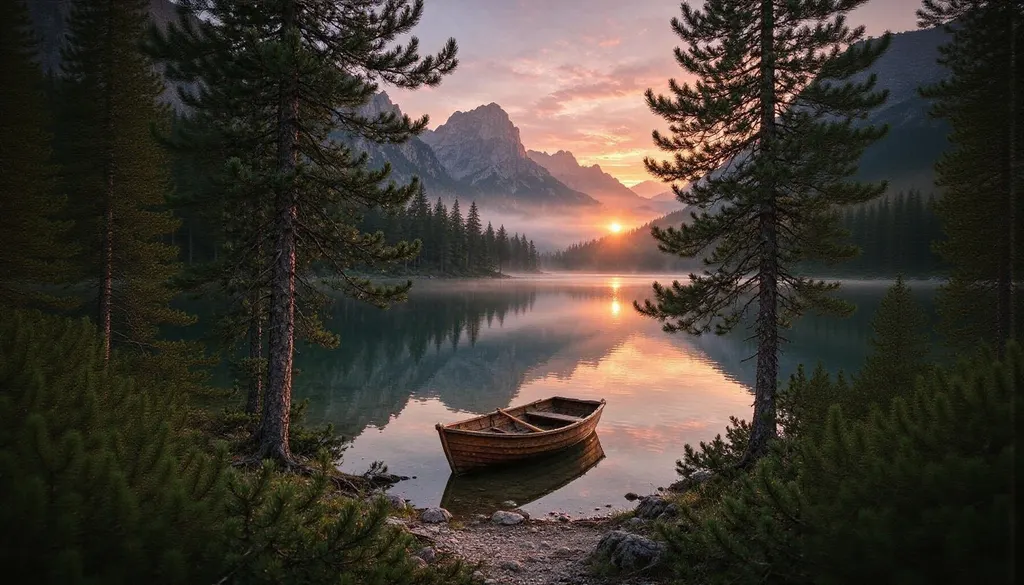 Example
See what it does
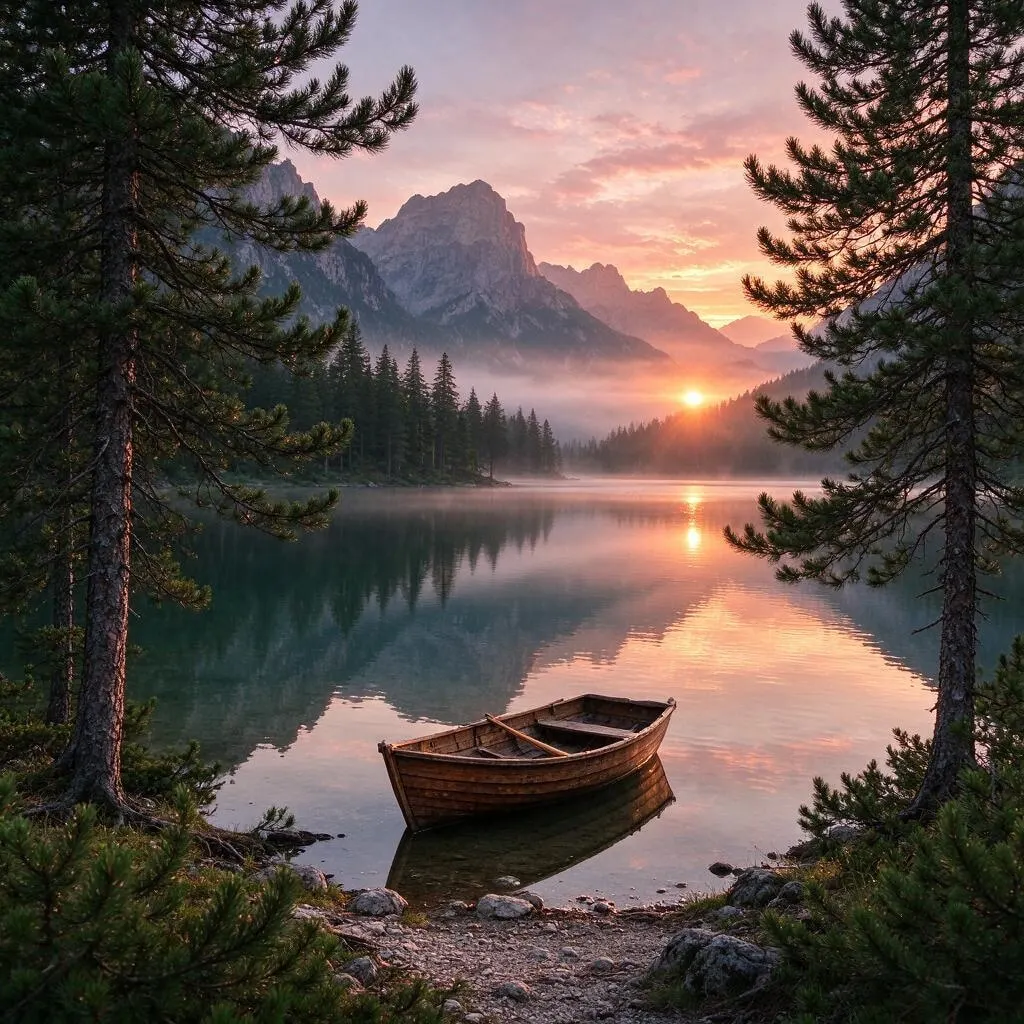 BeforeAfter
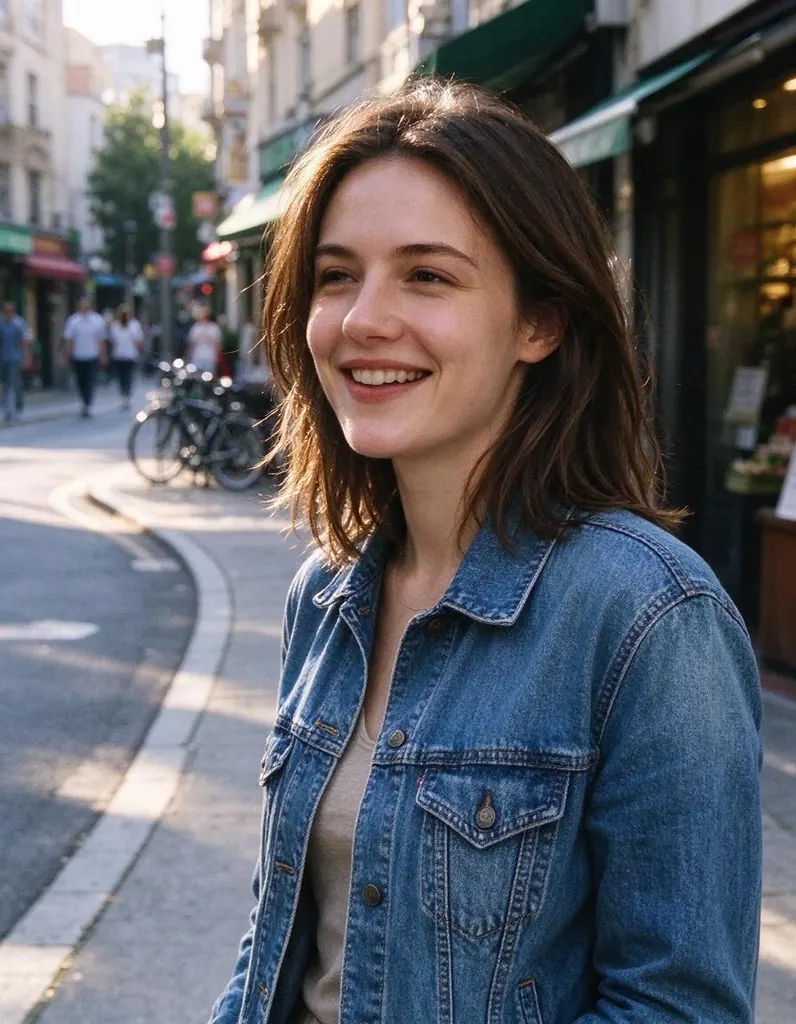 Before
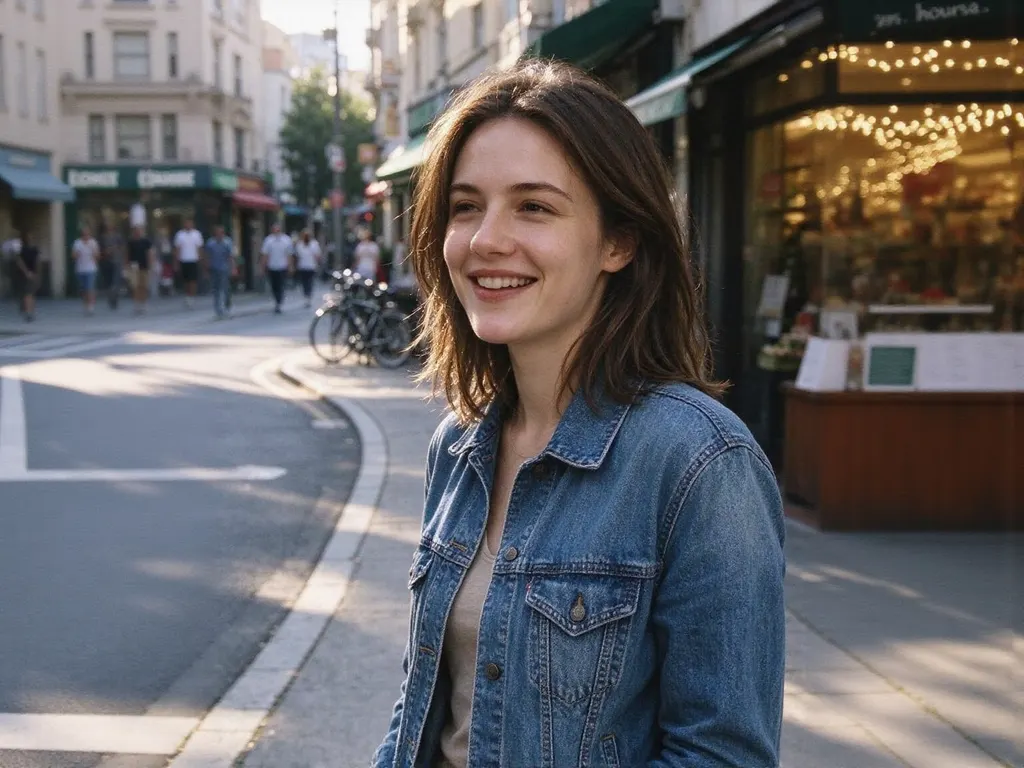 After
AfterHow it works
Why people use it
Change the shape, keep the subject
Fit a photo into a new format without cropping out heads, products or important details.
Natural-looking edges
The new area continues the scene, lighting and colors of the original.
Made for common formats
Choose 1:1, 4:3, 3:4, 16:9 or 9:16 to turn square shots into wide banners, or landscape photos into vertical posts and stories.
No watermark
Extended images download clean, even when you use free credits.
Low cost per image
Each extension costs 2 credits. Try a few times and keep the best one.
When to use the AI image extender
Most photos are taken in one shape and needed in another. A square product shot needs to become a wide website banner. A landscape photo needs to fill a vertical phone screen. Cropping throws away part of your picture, and stretching distorts it. The AI image extender keeps your whole photo and generates new scenery around it, so you get the format you need without losing anything.
It's also useful for giving a tightly framed photo more breathing room, for example to make space for a headline or a logo on a thumbnail.
The extender uses FLUX.1 Fill [dev], an inpainting model from Black Forest Labs. It looks at the colors, textures and lighting along the edges of your photo and continues them outward, so the new area blends with the original instead of looking pasted on.
Tips for a better extension
- Start with a clean edge. Photos with simple backgrounds near the border, like sky, sand, walls or studio backdrops, extend most naturally.
- Avoid cutting through people. If a person is cut off at the edge, the AI has to invent the missing part, which may not match.
- Keep the jump reasonable. Going from a tall portrait to a very wide banner means the AI has to invent most of the picture. Smaller changes look more natural.
- Run it more than once. Each result is a little different, so generate again if the first one doesn't fit.
Size and limits
Results are up to about 2 megapixels, which is plenty for social posts and web banners. For print or large screens, run the result through the Image Upscaler. Because the new area is generated, it can't show what was really there outside the shot. Text, faces and detailed patterns near the edges are the most likely to look off. Extended images never get a watermark, and each one costs 2 credits.
Frequently asked questions
Try next
 Object RemoverFreeBrush over what you don't want and the AI fills in the gap. The AI Object Remover works today; a free in-browser eraser is coming soon.AI Object Remover4 creditsErase large objects and busy scenes with a cleaner, more natural fill. No watermark on the result.
 Generative Fill2 creditsBrush an area, type what you want there, and the AI paints it in to match the rest of the photo.