AI Old Photo Restoration
Repair scratched, creased and faded prints in one step, while keeping faces true and the photo's original character.
- 8 credits
- Free account, 20 credits to start
- No watermark with purchased credits
Needs a free account. New accounts get free credits to start.
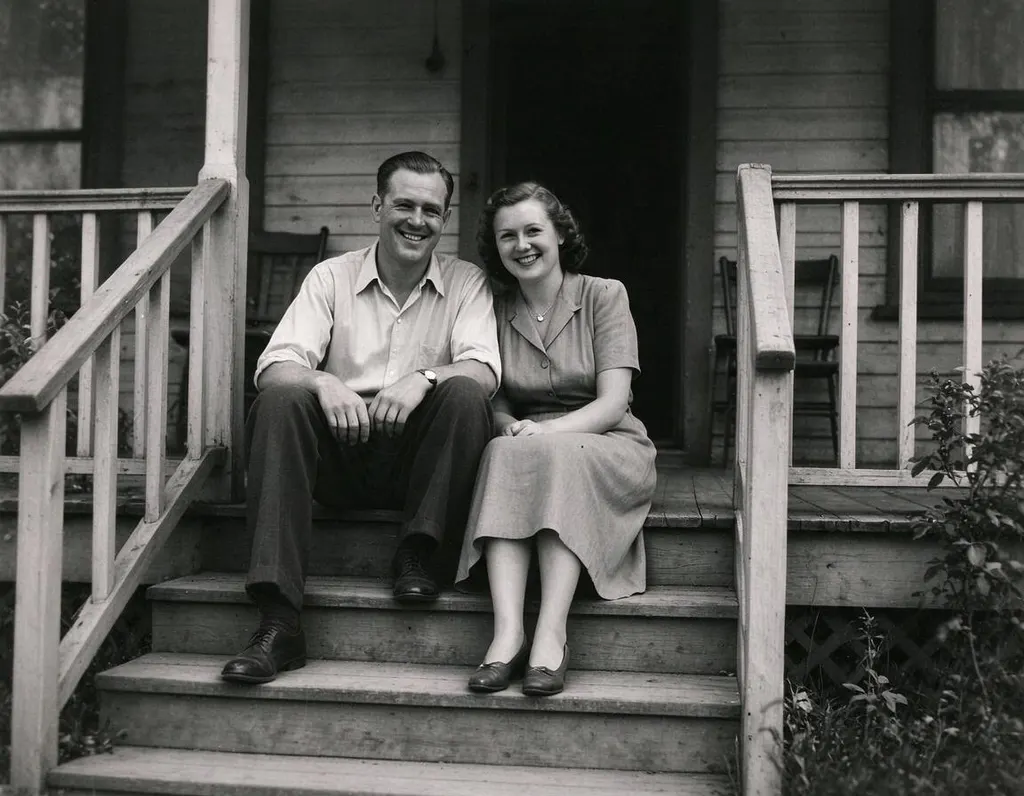
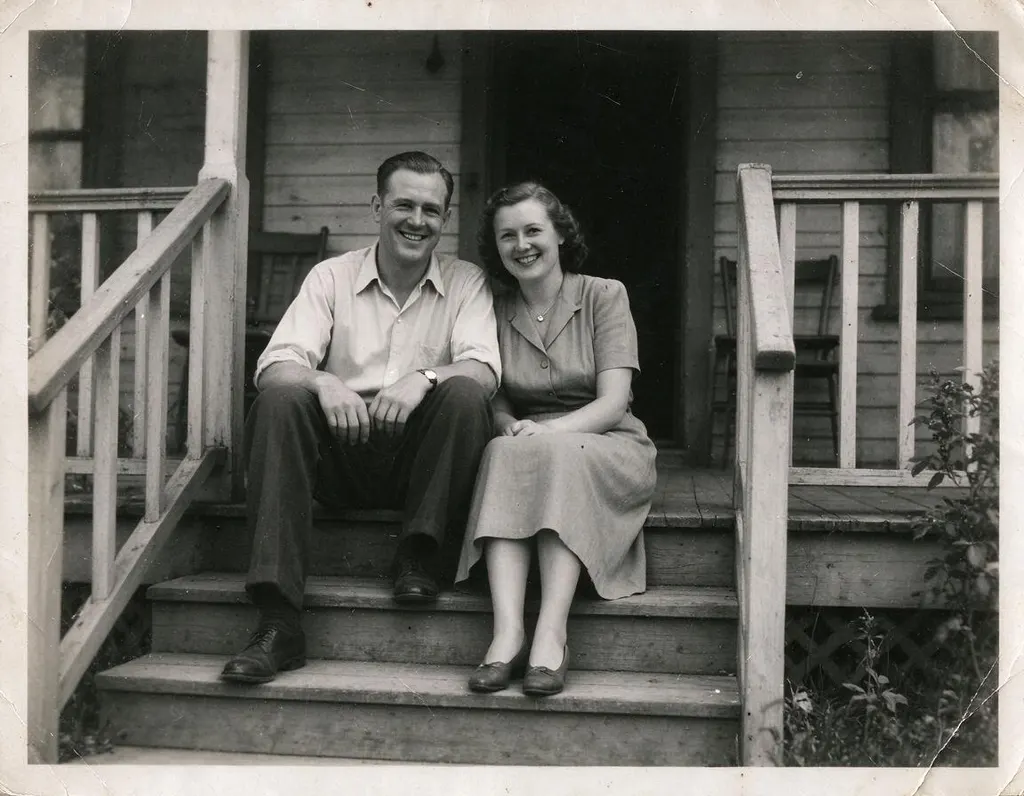
See what it does
How it works
Why people use it
Repairs real damage
Fixes scratches, creases, stains and faded tones in one pass.
Keeps faces true
Restoration is designed to keep people looking like themselves, not like new people.
Keeps the era
Clothing, hairstyles and the photo's age stay intact, so it still feels like the original.
Powered by Seedream 5.0 Flash
Uses ByteDance's Seedream 5.0 Flash image model, which is good at keeping people unchanged while it repairs the damage.
Restore, colorize, animate
Send the restored photo to Colorize Photo and Animate Photo without uploading it again.
What old photo restoration fixes
Old prints pick up damage over the years: scratches from being handled, creases from wallets and envelopes, water stains and faded, washed-out tones. Old photo restoration with AI repairs that damage in one step. You upload a scan, and the AI cleans up the defects while keeping the people, the clothing and the feel of the era as they were.
It uses Seedream 5.0 Flash, an image model from ByteDance, to work out what each damaged area should look like from the rest of the picture.
Getting the best scan
- Scan, don't screenshot. A flatbed scan at a high resolution captures the most detail.
- Photograph carefully if you can't scan. Lay the print flat, use soft daylight, hold the phone straight above it, and avoid glare.
- Take it out of the frame. Glass and plastic sleeves add reflections the AI may treat as damage.
- Crop to the photo. Remove album pages and backgrounds before uploading.
Restore, then colorize and animate
Restoration repairs the photo but doesn't add color. Many people then send the restored photo to Colorize Photo to add natural color, and on to Animate Photo to turn a portrait into a short video. Restoring first gives the colorizer and the animator a cleaner picture to work from. Note that video can only be made with purchased credits.
Limitations
The AI rebuilds missing areas from what's around them. If a large part of a face is torn away, the result is a best guess, not the real person. Always compare the restored photo with the original, especially for faces, writing and small details. Free-credit results carry a small watermark, which purchased credits remove.
Each restoration costs 8 credits. Uploaded scans are deleted after 7 days, and location and other private metadata are removed when you upload. Restored photos are kept for 30 days on a free account and 365 days once you have bought credits or a subscription, so download the ones you want to keep.
Frequently asked questions
Try next
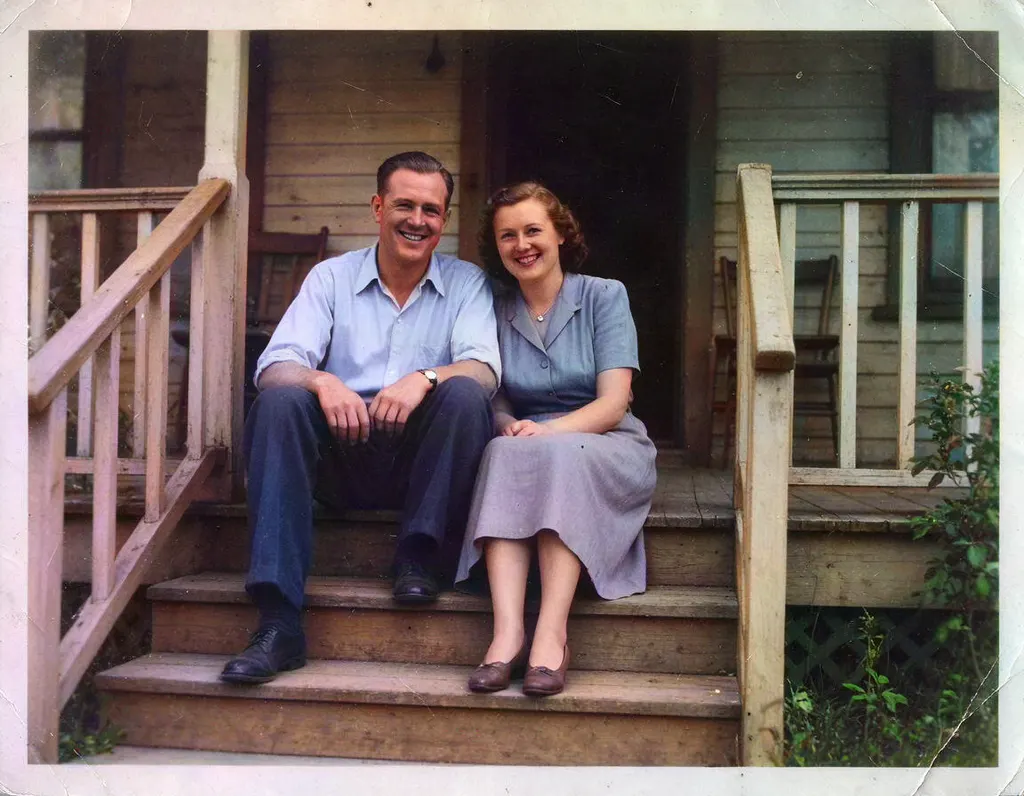 Colorize Photo2 creditsAdd natural color to old black and white pictures in one click. You can try it without an account.
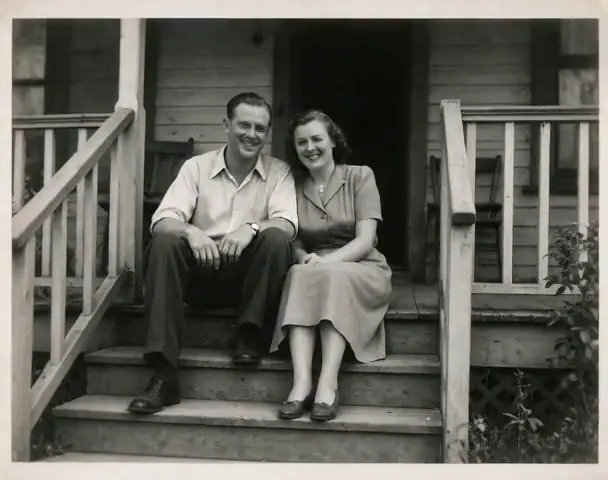 Animate Photo45 creditsTurn a still picture into a short, lifelike video with gentle, natural motion. Perfect for old family photos.
 Image Upscalerfrom 2 creditsMake small images bigger and sharper in one click. Choose 2x or 4x, with no watermark on the result.
 Unblur Imagefrom 2 creditsTurn soft, low-quality photos into clearer, sharper pictures. The result is enhanced at 2x with no watermark.