Convert Image to HD Online
Turn small, low-resolution or pixelated pictures into sharp HD images. The AI upscales up to 4x and rebuilds detail instead of just stretching pixels.
- from 2 credits
- Free account, 20 credits to start
- No watermark with purchased credits
Needs a free account. New accounts get free credits to start.
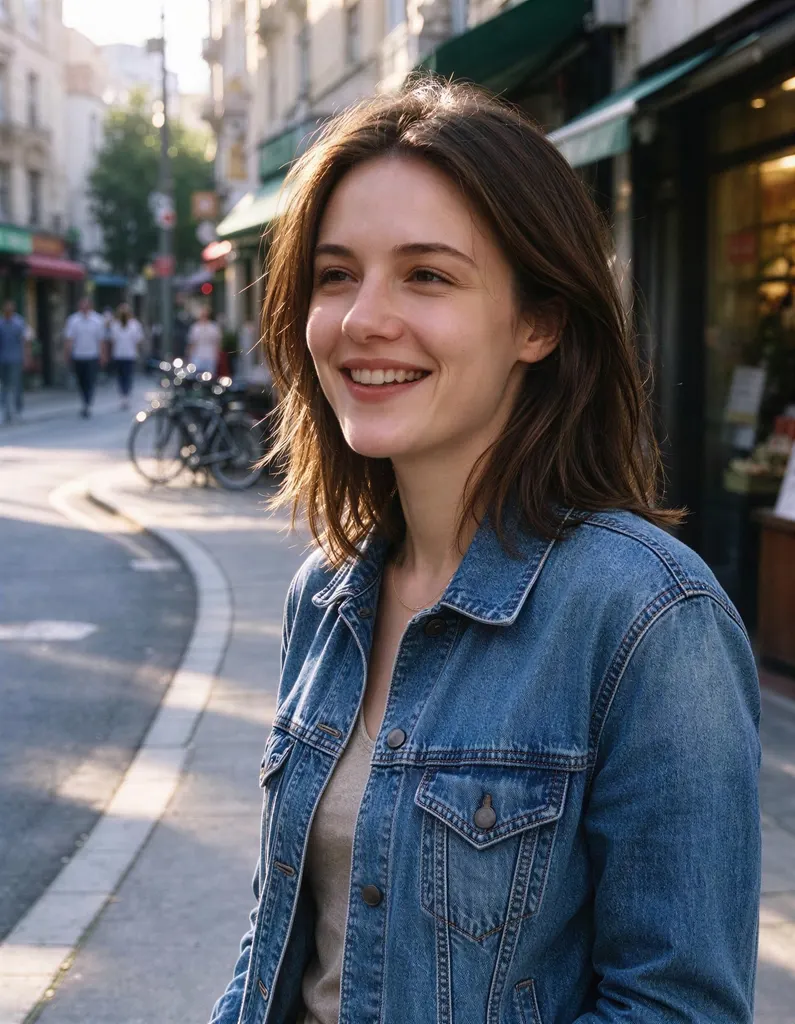
See what it does
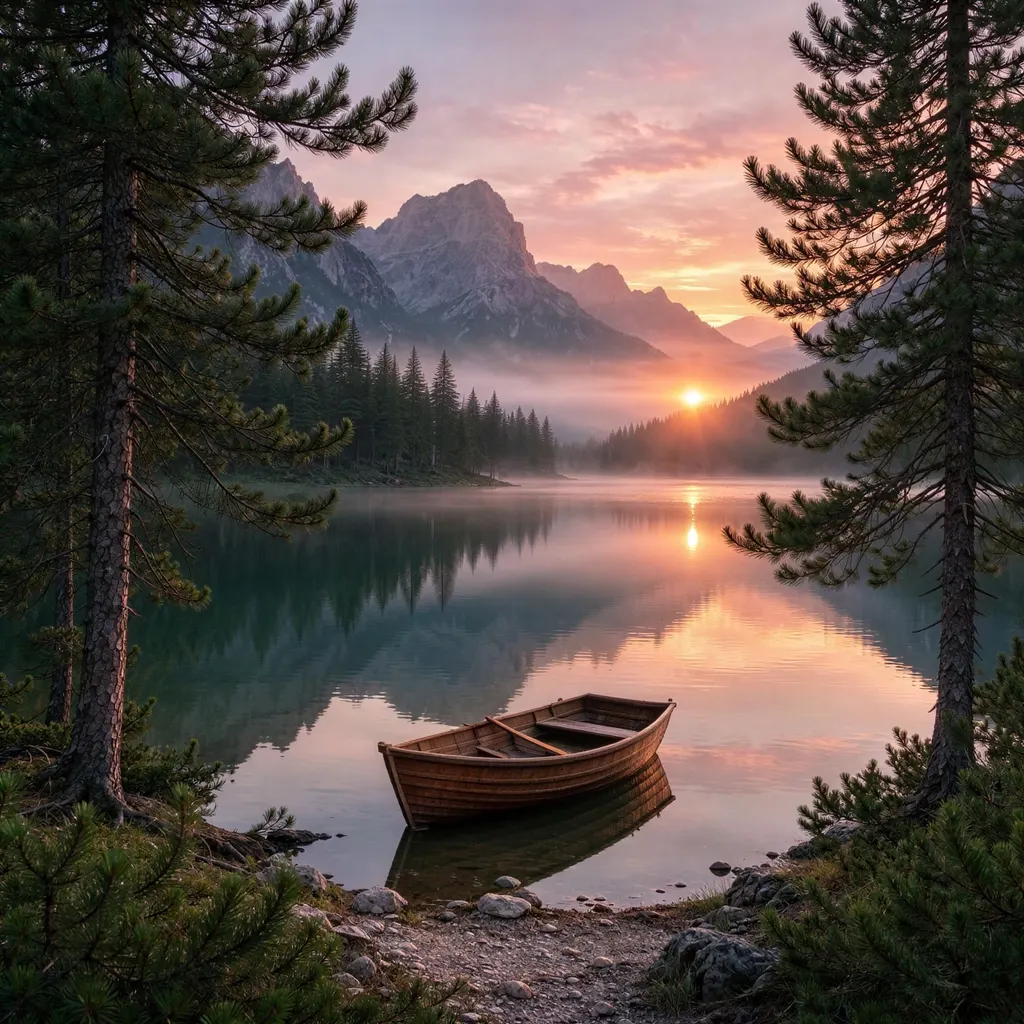
How it works
Why people use it
Real detail, not blur
The AI redraws edges, skin, hair and textures, so the HD version looks sharp instead of soft.
Up to 4x larger
A 500 px image becomes 2000 px: enough for HD screens, printing or a new profile picture.
Photos and graphics
Portraits, products, landscapes, screenshots and AI art all work.
Low price per image
From from 2 credits per image depending on the size. New accounts start with free credits.
Private uploads
Uploads are deleted after 7 days. Location and other private metadata are removed.
Make a low-quality image HD
Small or pixelated images are everywhere: thumbnails saved from a website, photos sent through chat apps, screenshots, pictures from old phones. Converting them to HD used to mean accepting a blurry result. AI upscaling is different: it looks at the image and fills in plausible detail as it enlarges, so a small picture becomes a clean, sharp HD image.
When to use it
- Profile pictures and avatars that look fuzzy on a big screen.
- Product photos that a marketplace rejects for being too small.
- Printing a photo that was only ever shared online.
- AI art generated at a low resolution.
If the photo is blurry rather than small, try Unblur Image. For old, faded or scratched prints, use Old Photo Restoration. All upscale options are in the Image Upscaler.
Limitations
The AI can't recover information that was never there: tiny faces in a group shot or unreadable text can come back looking invented. Results are best when the subject is reasonably visible in the original.
Frequently asked questions
Try next
 Unblur Imagefrom 2 creditsTurn soft, low-quality photos into clearer, sharper pictures. The result is enhanced at 2x with no watermark.
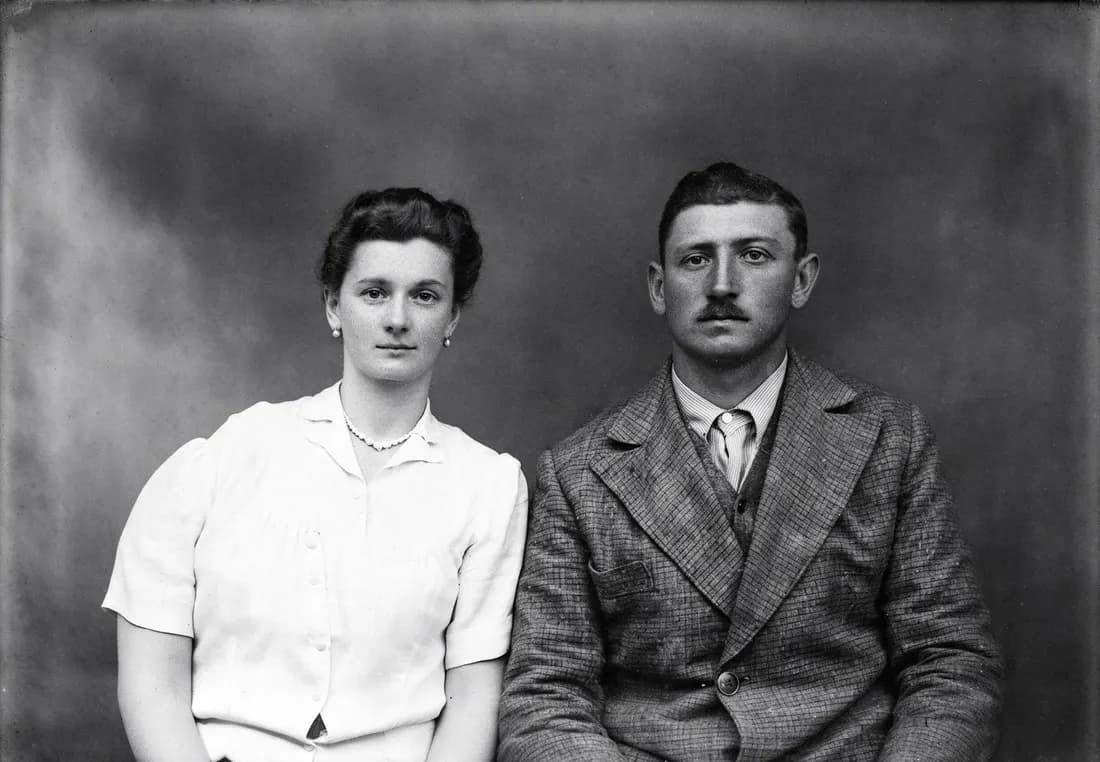 Old Photo Restoration8 creditsRepair cracks, tears, stains and fading in one step. Faces stay the same, and you can add color or bring the photo to life after.
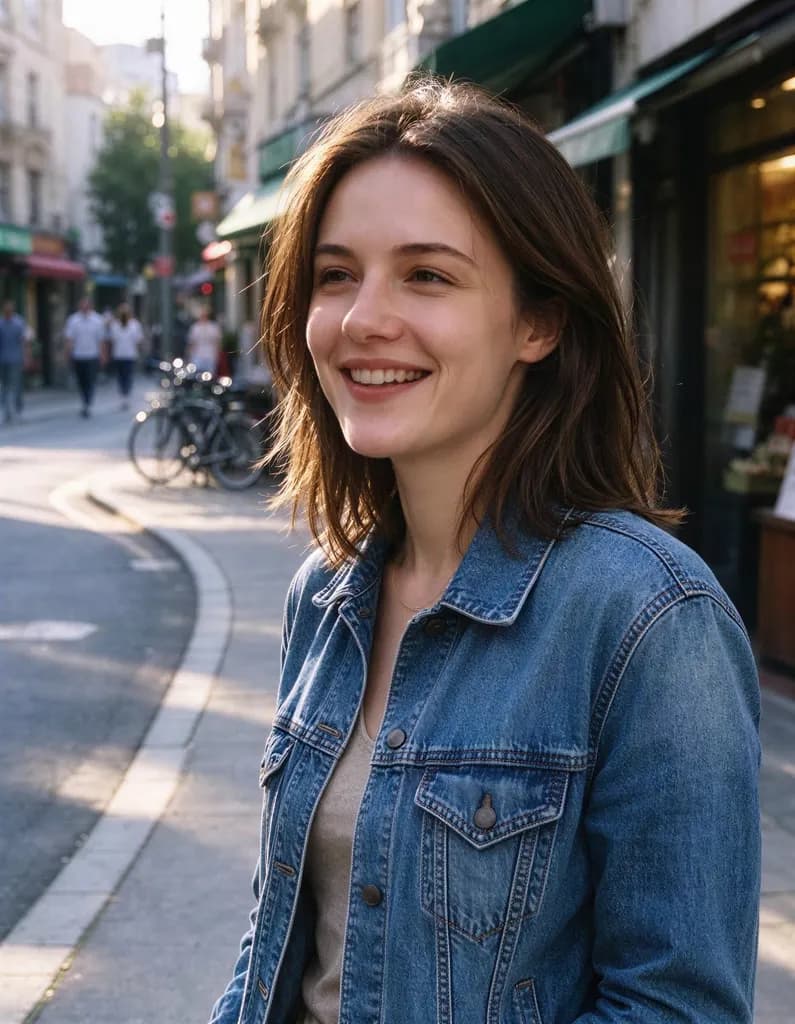 Image Upscalerfrom 2 creditsMake small images bigger and sharper in one click. Choose 2x or 4x, with no watermark on the result.
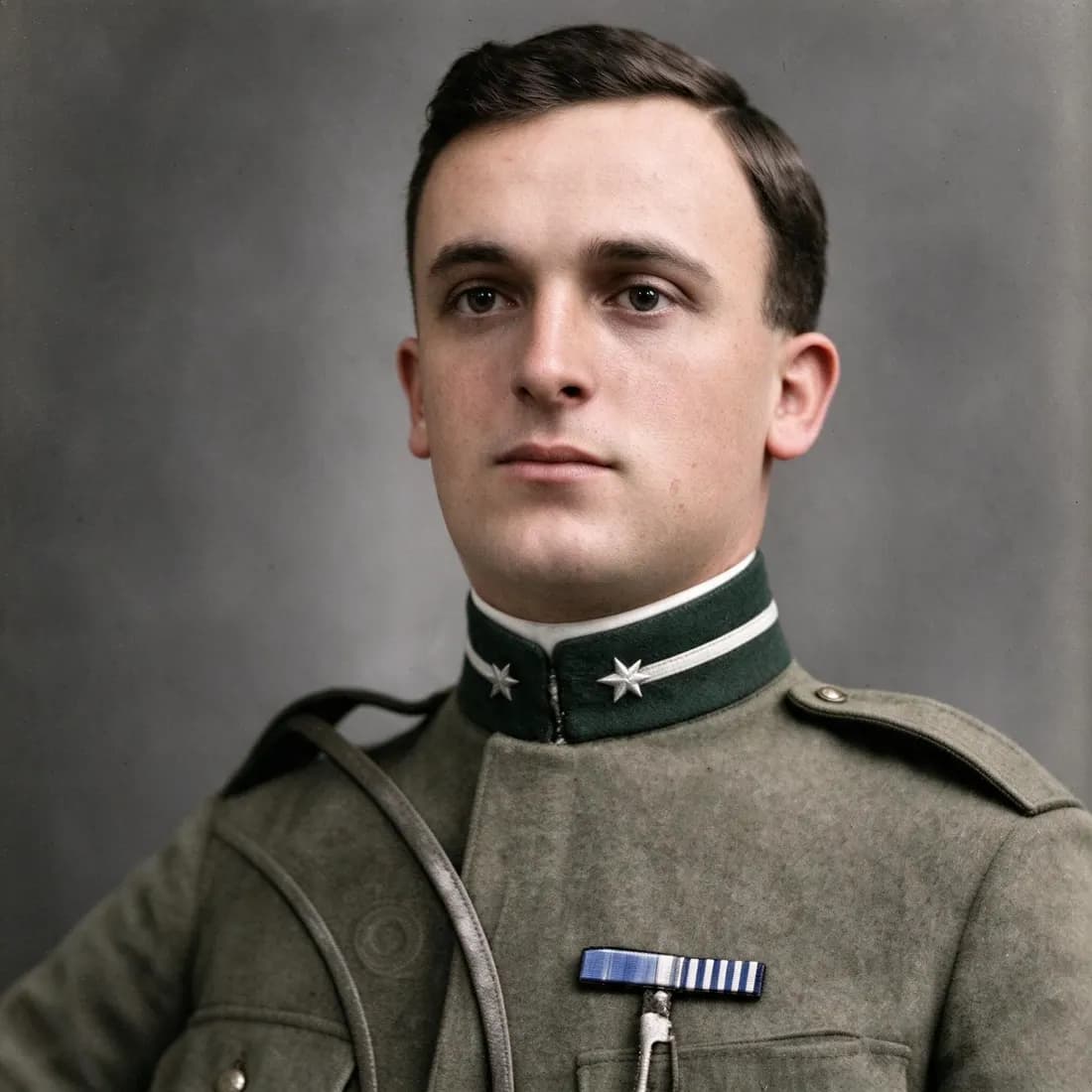 Colorize Photofrom 2 creditsTurn black and white or sepia photos into natural color. Faces, clothes and the background stay exactly as they are.